
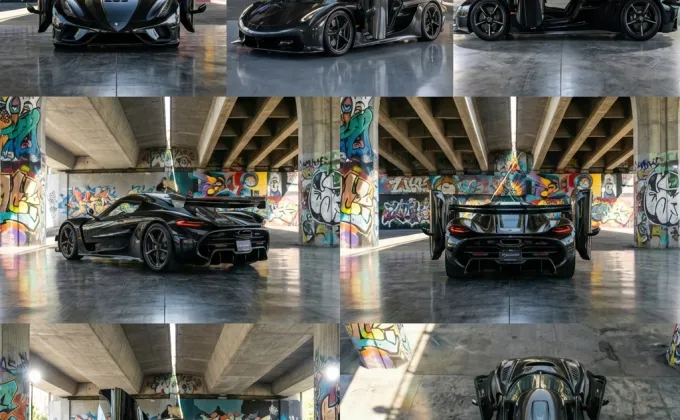
How to Change the Camera Angle in Your Photos Using Prompts
When you want to generate images with AI, it's not just the object you're requesting that matters, but also the viewpoint. Specifying the camera angle in the prompt helps the image come out clearer, more realistic, and closer to what you have in mind. You don't need to be an expert: with a few simple phrases, you can achieve excellent results.
Here's a simple way to do it. Just think of it as telling the AI how a camera would take the photo.
Basic Camera Angles
Left Front 3/4
prompt
Left front 3/4, camera slightly raised and to the left, showing the front and side.
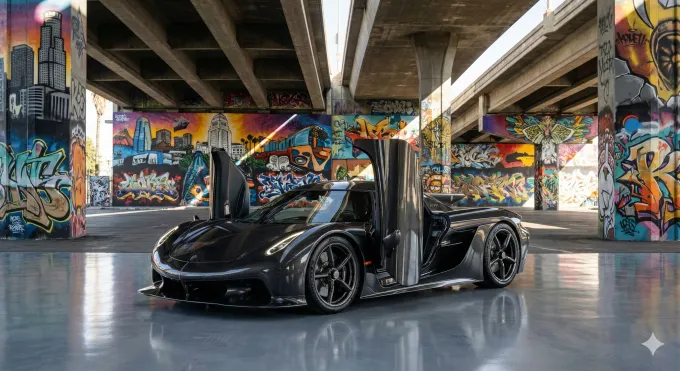
Full frontal view
prompt
Full frontal view, camera at object level, facing forward.
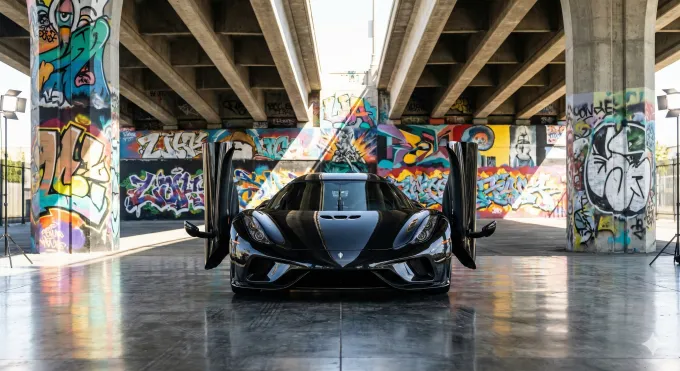
Left side
prompt
Left side, camera perpendicular to the left side of the object.
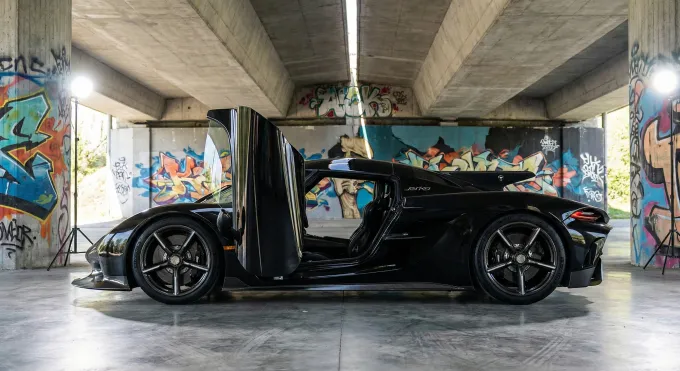
Right rear three-quarter view
prompt
Left rear three-quarter view: camera slightly raised and to the left, showing the side and rear.
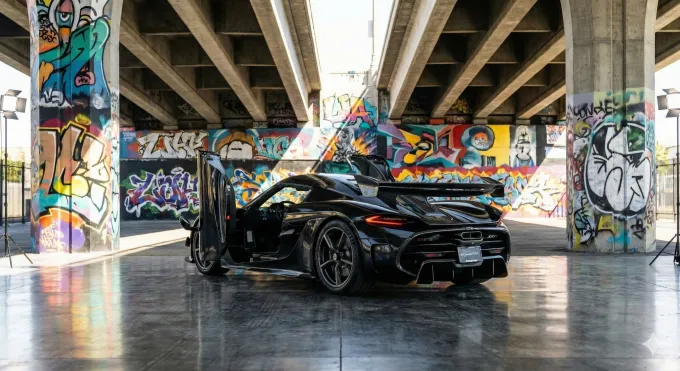
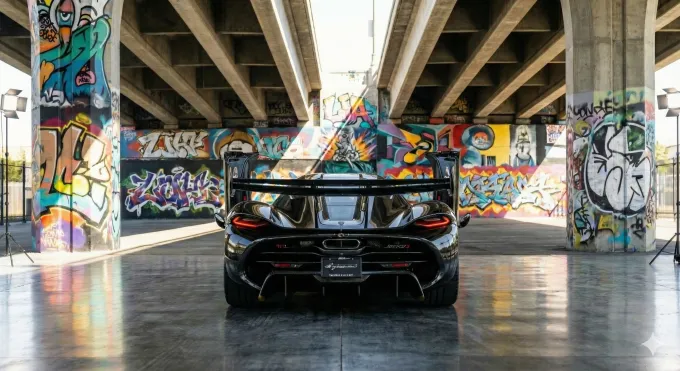
Full rear view
prompt
Full rear view, camera directly behind, level with the rear.
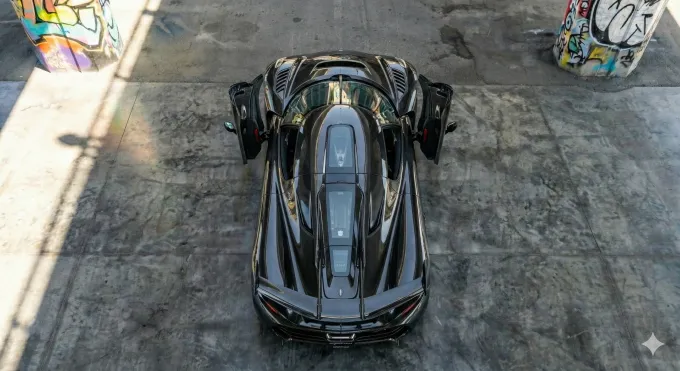
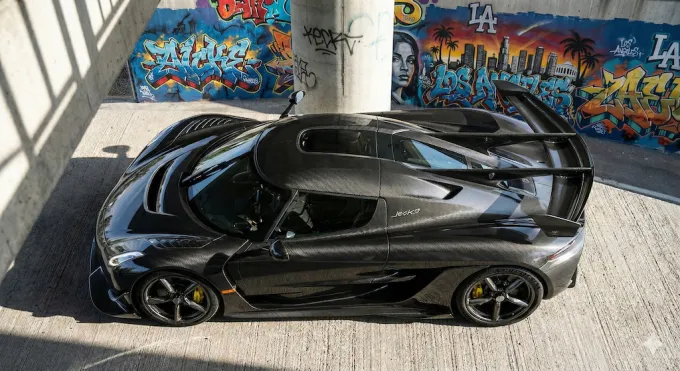
Overhead view
prompt
Overhead view, camera directly above the object, showing the ceiling and proportions.
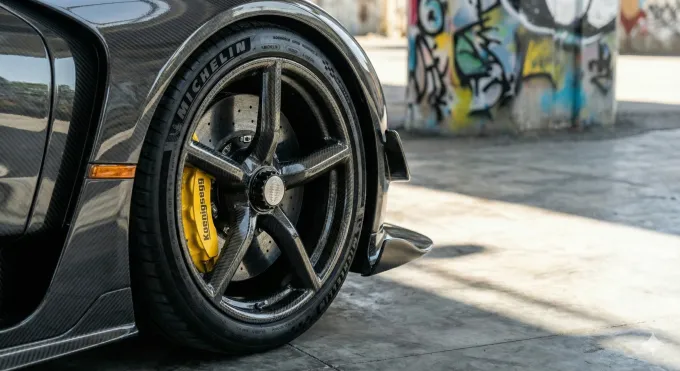
Close-up detail
prompt
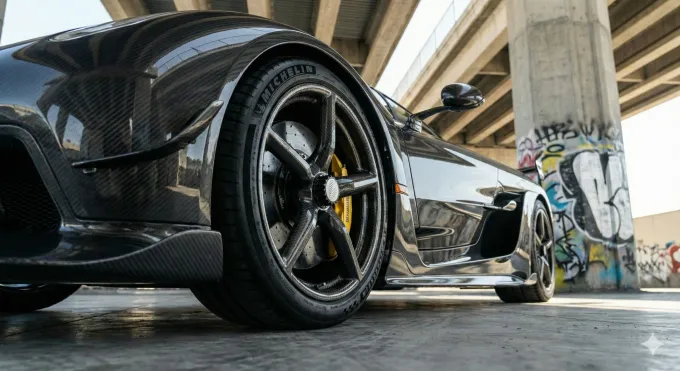
Close-up detail, camera focused on a specific element of the object [Right front rim and tire]
Low perspective
prompt
Low perspective, camera from below looking up, making the object appear imposing.
High perspective
prompt
High perspective, camera from above, showing the object from a tilted angle.
With these kinds of instructions, the AI better understands what you want, and the images tend to turn out much more accurate. There's no need to overcomplicate things: think about how you would take the photo with your phone and write it down in simple words.
